Modern smartphone screens—especially OLED and AMOLED panels—deliver vibrant colors, extreme contrast and lightning-fast response times. Yet behind this stunning quality hides a weakness: pushing brightness to the max for long periods can leave permanent “ghost” images called screen burn-in. In the next sections you’ll learn how these displays work, why high brightness harms them, and the simplest ways to protect them. First, let’s define a pixel.
What Is a Pixel?
- Think of a pixel as a single cell in the screen.
- Picture the display as a giant mosaic: every pixel is a tile. The more (and smaller) the tiles, the sharper the image.
- Inside each pixel are three sub-pixels—red, green and blue (RGB). By mixing their brightness we get the millions of colors that form photos and videos.
How Do OLED / AMOLED Screens Work?
- Unlike LCDs that need a back-light, every OLED pixel lights itself. When current passes through a thin organic layer, it emits light directly—so dark scenes look truly black and colors pop.
- Those self-emitting pixels, however, suffer stress if you keep them at high brightness for extended periods.
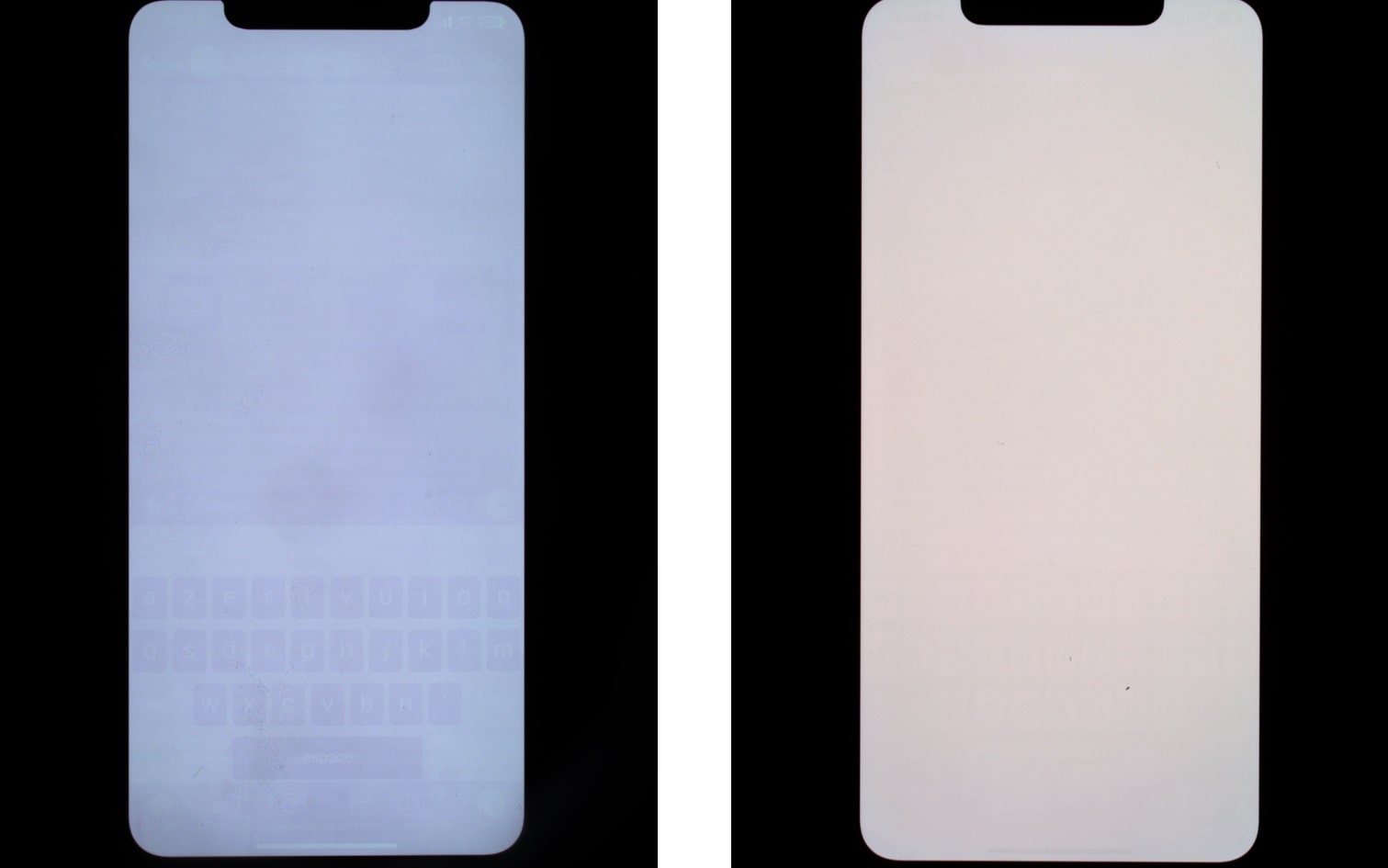
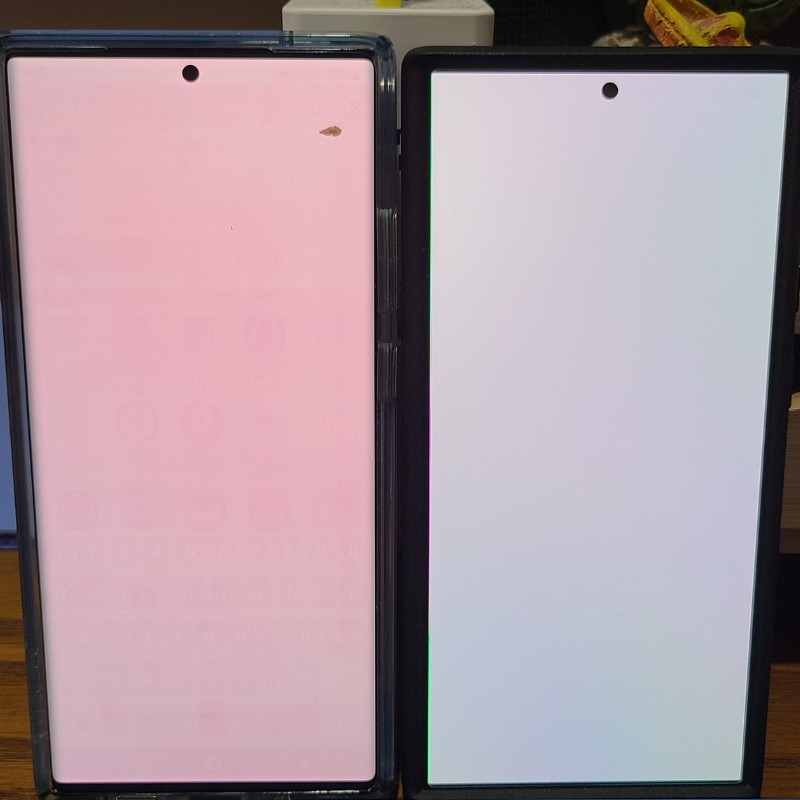
Real-World Screen Burn-In Examples:
How to Protect Your Phone’s Display
- Adjust screen brightness
Keep daily brightness around 50 – 70 % or enable auto-brightness. This alone greatly reduces pixel stress.
- Reduce static images
Change your wallpaper regularly and use gesture navigation instead of fixed on-screen buttons. Turn off or dim the Always-On Display; many brands also move the clock position automatically to spread wear.
- Use built-in protection features
If your phone offers screen-protection or pixel-shift options, enable them and follow the maker’s guidelines—each brand uses its own name and method.
- Cut screen-on time
Set the display timeout to 30 – 60 seconds of inactivity. Every minute of rest means a longer screen life.
- Switch to dark mode
Dark mode turns off more pixels, easing their workload and lowering burn-in risk.
What If Burn-In Has Already Appeared?
- Run Pixel Refresher or a built-in “Screen Optimizer” if available; it can soften mild retention.
- Lower brightness and use a dark wallpaper to hide the shadows.
- Check your warranty—some brands (Samsung, Sony, LG) cover burn-in for certain models and periods.
- Try a burn-in fixer video that cycles colors to balance pixel wear. Example: Screen Burn-In Fix. Play it for about an hour. Note: This slightly reduces peak brightness and color saturation—but it’s better than persistent shadows.
- If burn-in is severe and permanent, replacing the screen is the only full fix.
In Summary
Pixel burn-in hasn’t vanished entirely, but it’s rare if you apply these tips. Remember the simple formula: moderate brightness + changing images + protection features. Enjoy OLED’s dazzling colors—smart usage is the key to keeping your display flawless for years.