Lithium-ion and lithium-polymer batteries inside our phones have a limited life span. With every charge–discharge cycle, chemical reactions gradually reduce the usable capacity. After a few hundred cycles a battery can lose 15–25 % of its rated capacity, forcing you to recharge more often and shortening the run-time per charge (remember how a brand-new phone easily lasts a full day, but after two or three years the same usage pattern often means two charges a day).
Why Should You Track Your Phone’s Battery Health?
- To prolong the overall life of your phone’s battery.
- To make an informed decision when you need to replace the battery.
- To verify battery health when buying a used phone and avoid devices with a worn-out battery.
At SamSony we want to show you a simple yet effective way to know your battery’s condition and keep it from degrading too quickly—by using the AccuBattery app. First, however, you need to understand the difference between design capacity and actual capacity.
What’s the Difference Between Design Capacity and Actual Capacity?
-
Design Capacity: the figure the manufacturer advertises in milliamp-hours (mAh).
-
Actual Capacity: the amount of energy the battery can store right now; it decreases with use, heat, and age.
For example, a battery designed for 5000 mAh that now registers 4200 mAh after a year of use has about 84 % health.
AccuBattery App
AccuBattery provides a scientific method to measure the remaining real capacity. It monitors how much charge flows into the battery, estimates its true capacity, and compares that with the original figure to give you an approximate battery-health percentage.
How AccuBattery Measures Battery Health
-
Recording charge amount (mAh):
During every charging session the app tracks the electricity that actually enters the battery, expressed in milliamp-hours. -
Estimating full battery capacity:
Based on how much charge raised the battery level (e.g., from 20 % to 80 %), the app calculates what a full 0–100 % charge would be. -
Comparing with original capacity:
After identifying the phone’s design capacity, the app compares both numbers to determine your current “Battery Health”.
Steps to Check Battery Health with AccuBattery:
1 – Download and install the app:
- Get AccuBattery from Google Play, APKPure, or APKMirror.
- Install and launch it, then grant the required permissions (battery stats access).
2 – Use your phone normally:
- The app won’t show battery health on day one; it needs charging and discharging data—usually a couple of days or more.
3 – Charge the battery as usual:
- Charge your phone several times; longer sessions (e.g., 20 % → 80 % or higher) improve accuracy.
- The wider the charge span, the better the estimate.
- Keep the screen off as much as possible during charging to reduce interference.
- Avoid interrupting the session—let each charge complete in one go.
4 – Wait for several sessions (at least 3–5 charges):
- The app needs sufficient data to give an accurate reading.
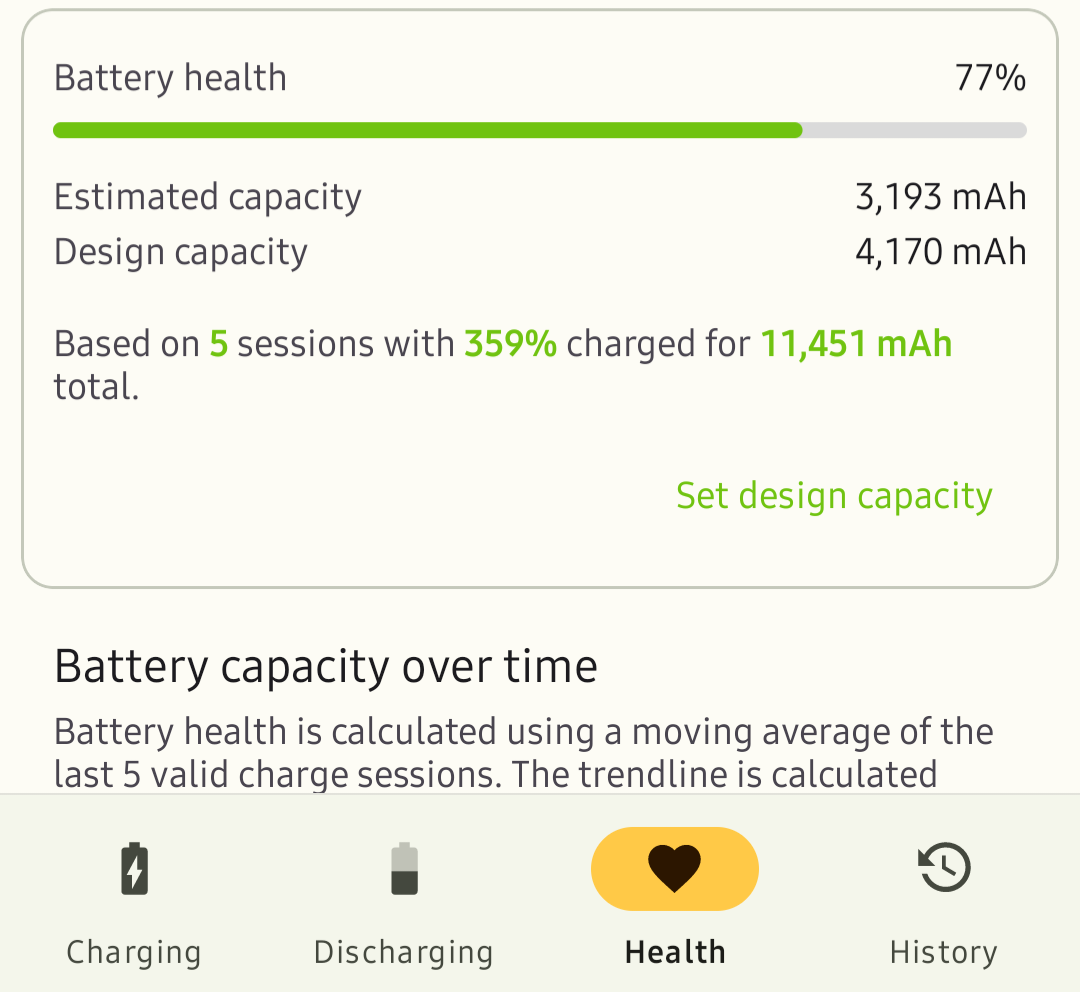
- After a few sessions you’ll find in the “Battery Health” tab:
- Estimated Capacity (e.g., 4200 mAh)
- Design Capacity (e.g., 5000 mAh)
- Battery Health (e.g., 84 %)
5 – Monitor changes over time:
- Keep using the app; more sessions mean more accurate calculations.
- Watch whether battery health is steady or dropping quickly.
To wrap up, the screenshot below is from our own test on a Samsung Galaxy Note 10 + after three years of use. It shows a nominal capacity of 4170 mAh and an actual capacity of 3193 mAh—meaning 77 % battery health, which is on the low side.